
AI Meeting Notes: How to Transcribe a Call and Get Clean Notes
To get notes from a recorded call, work in two passes. First, turn the audio into a transcript with speaker labels. Then ask a chat model to pull out the summary, decisions and action items. Because the passes are separate, you can check the transcript before anything gets summarized, and most errors show up there.
For a short internal sync, you can skip the first pass and give the file straight to a chat model that accepts audio. For client calls, interviews or anything over an hour, transcribe first. If you only need the text, start with how to transcribe audio to text with AI.
What "AI meeting notes" means
"Meeting notes" usually means three separate things:
- Transcript. Everything that was said, with speaker labels and timestamps. It's long and raw, and it's your source of truth.
- Summary. Three to five lines on what the meeting covered and where it landed.
- Decisions and action items. What was agreed, who does what, and by when.
Most people only want the last two, but those can only be as good as the transcript. Say the transcript credits Speaker 2 with a deadline that Speaker 1 set. The action item goes to the wrong person, and nobody notices until the deadline passes. Treat the transcript as the record and the notes as a view of it.
Two ways to do it: speech-to-text or a chat model that listens
A dedicated speech-to-text model
ElevenLabs Speech-to-Text (Scribe) turns speech into text. It also does diarization, which means it splits the transcript by speaker. The output is verbatim and isn't summarized. Use it for long calls, exact quotes, and any meeting where you need a record of who said what.
A multimodal chat model
Models like Gemini 3.8 Flash or ChatGPT-5.5 take an audio file plus a text prompt, so you can ask for notes in one step. It's faster. The catch is that you get the model's reading of the call, not a verbatim record. It can smooth over a phrase it misheard, and with no transcript you have nothing to check it against. The same approach works if you want to summarize a recorded video call.
Rule of thumb: if anyone might later ask "who exactly said that?", transcribe first.
Step by step: from a call recording to a speaker-labeled transcript
- Record with your call tool. If it can export audio only, use that. The file is smaller and has the same content. If you only have the video, you can convert a video recording to text the same way.
- Check the file. Play the first and last minute. Make sure there's sound and you can hear every participant.
- Transcribe with speaker labels. Upload the file to ElevenLabs Speech-to-Text. Expect generic labels like Speaker 1 and Speaker 2.
- Map labels to names. Listen to the first two or three minutes, where people usually introduce themselves or greet each other. Then use find-and-replace on the labels.
- Spot-check three moments: a number, a name and a deadline. Compare each one with the audio. If all three are right, the transcript is usable. If one is wrong, check every number in the file.
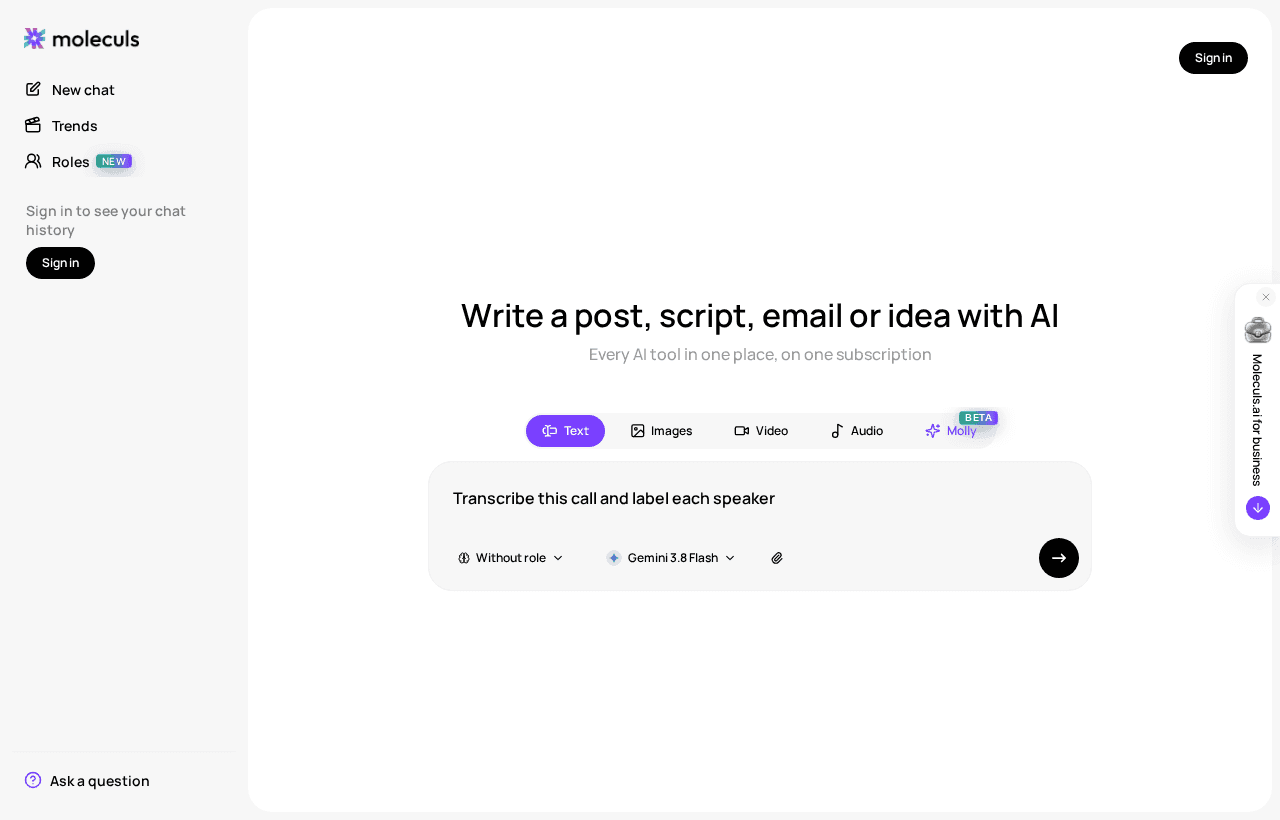
If you transcribe with a chat model instead, ask for a transcript explicitly. Otherwise it will summarize:
Transcribe this recording verbatim. Label speakers as Speaker 1, Speaker 2, etc.
Add a timestamp [mm:ss] at every speaker change.
Do not summarize, fix grammar or drop sentences.
Mark unclear parts as [inaudible mm:ss].Turning the transcript into notes: prompts for summary, decisions and action items
A vague "summarize this" gives you a paragraph of prose with no owners. Use a prompt with fixed parts instead: role, context, task, format, constraints.
Role: You are a project coordinator writing notes for people who missed the meeting.
Context: Weekly product sync, 5 October 2026. Speaker 1 = Anna (PM),
Speaker 2 = Raj (backend), Speaker 3 = Li (design).
Task: Turn the transcript below into meeting notes.
Format:
1. Summary - 3 lines max.
2. Decisions - one per line, with the [mm:ss] where it was made.
3. Action items - table: task | owner | deadline | [mm:ss].
4. Open questions - raised but not resolved.
Constraints: Use only what is in the transcript. If an owner or deadline
is not stated, write [check]. Do not merge separate tasks. Do not add advice.
[paste transcript]Each line has a job:
- The context line fixes the speaker mapping.
- Timestamps let you check any decision in seconds.
- [check] stops the model from making up a "by Friday" that nobody said.
- "Open questions" catches items that sound like decisions but aren't.
The notes are usable when:
- Every owner is someone who attended.
- Every decision has a timestamp you can jump to.
- A long call has at least one [check]. Zero [check] marks on an hour-long meeting is suspicious.
To test the format on your own transcript, run a short version of this prompt and attach the file.
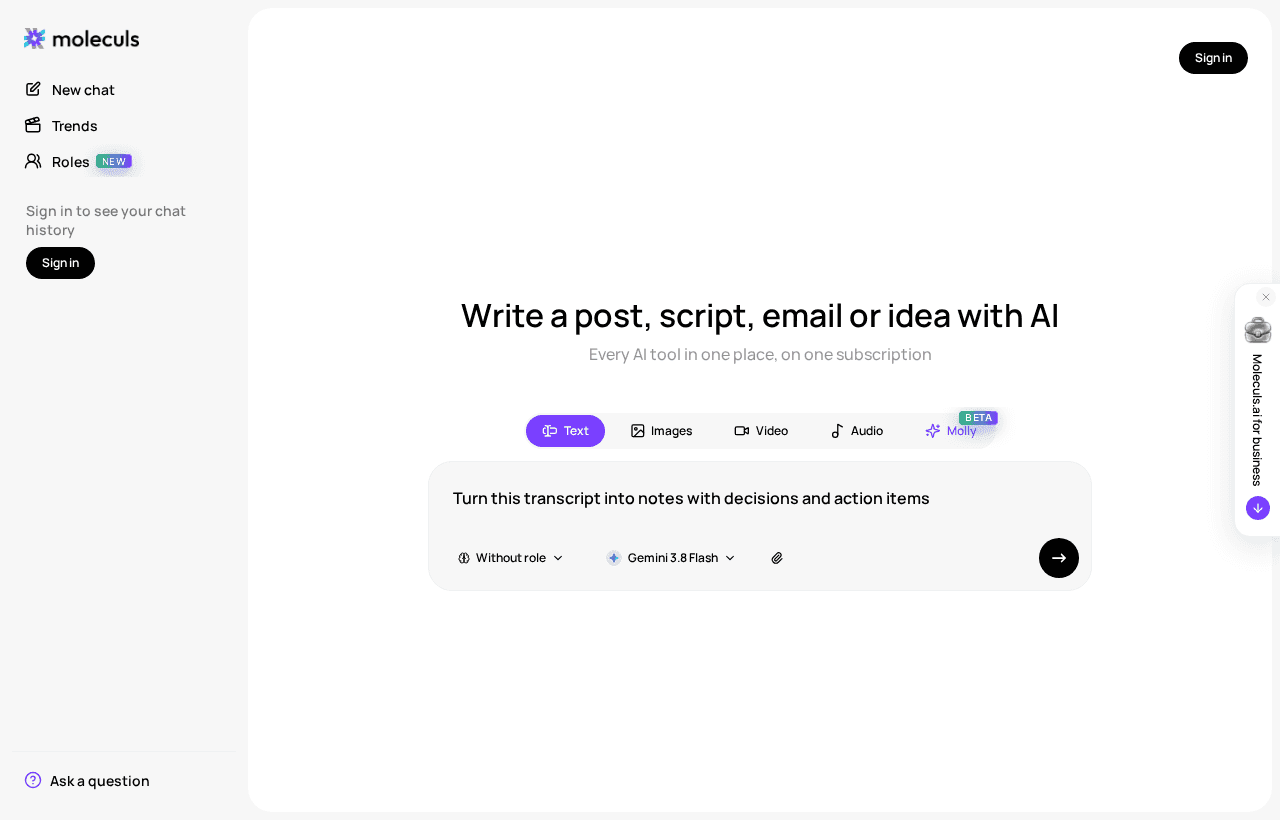
Which models in Moleculs handle audio, and how to choose between them
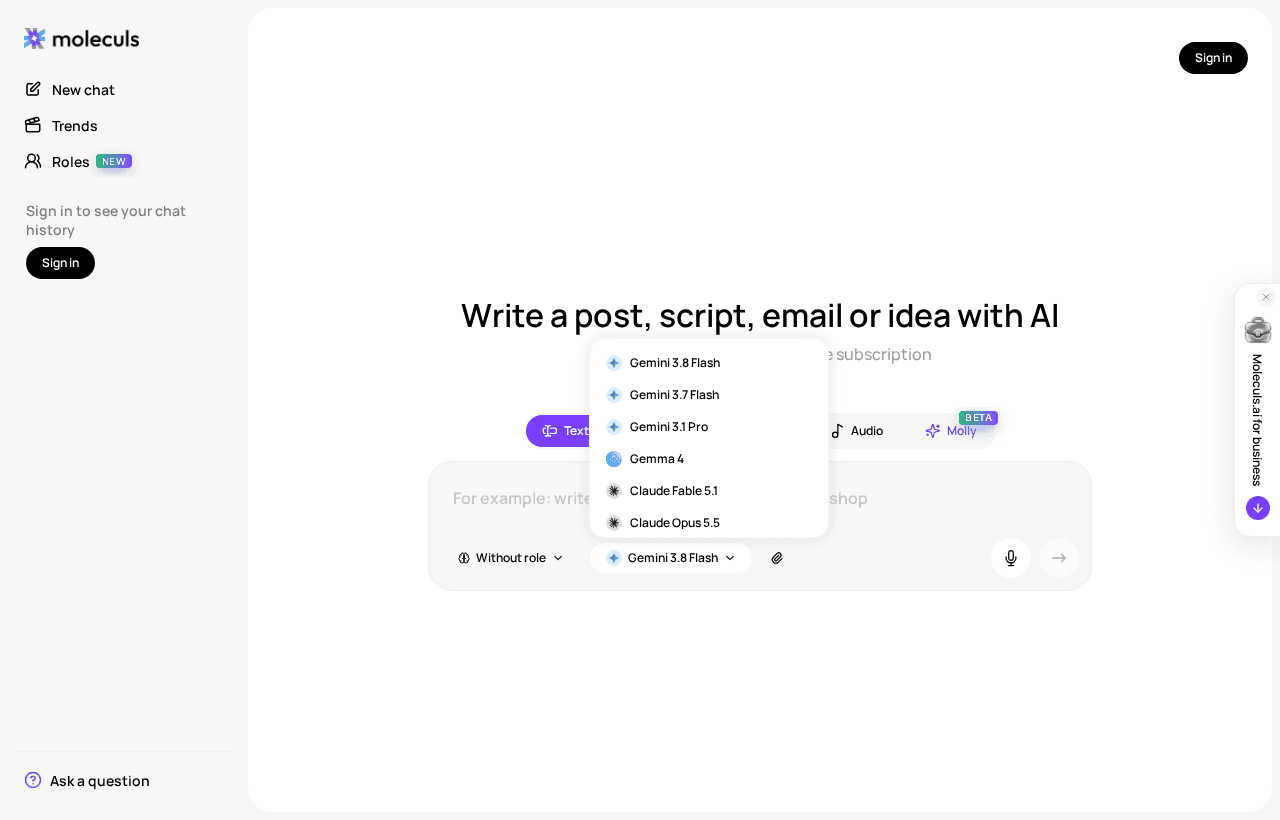
These are the models that accept audio as of October 2026, with their cost per run:
- ElevenLabs Speech-to-Text (Scribe): transcription with diarization. Check its cost in the catalogue.
- Gemini 3.8 Flash: 2 credits. Gemini 3.7 Flash: 4 credits. Gemini 3.1 Pro: 12 credits.
- ChatGPT-5.5: 28 credits.
- Qwen 3.8 Flash and DeepSeek V4 Flash: 1 credit each. DeepSeek V4 Pro: 2 credits.
Test the models on your own call instead of guessing:
- Cut a 10-minute fragment that includes a decision and a couple of tasks.
- Run it through two cheap models, such as Gemini 3.8 Flash and Qwen 3.8 Flash, using the notes prompt above.
- Compare three things: names spelled correctly, the number of action items against your own count, and any tasks nobody actually set.
- Use the winner on the full call. Move up to Gemini 3.1 Pro or ChatGPT-5.5 only if both cheap models miss things.
A run on Gemini 3.8 Flash or Qwen 3.8 Flash costs 1-2 credits. On ChatGPT-5.5 it costs 28. Once you have a transcript, the notes step doesn't need audio at all: any text model that accepts files will do. Check current prices in the catalogue.
Comparison table: speech-to-text vs multimodal chat models for meetings
| Speech-to-text (ElevenLabs Scribe) | Chat model with audio input | |
|---|---|---|
| Output | Verbatim transcript | Notes, or a transcript if you ask |
| Speaker labels | Built-in diarization | Only if you ask; check them |
| Exact quotes | Verbatim text | May paraphrase |
| Steps to notes | Two | One |
| Best for | Client calls, interviews, anything you may quote | Short internal syncs |
Where transcription goes wrong: crosstalk, accents, jargon, long recordings
- Crosstalk. When two people talk at once, their lines merge or go to the wrong speaker. Separate mics help most. Afterwards, search the transcript for very short turns that switch back and forth, and listen to those spots.
- One speakerphone in a room. Everyone in the room becomes a single "speaker." Label those parts by hand.
- Accents and mixed languages. Name the languages in the prompt: "The call is in English with some Hindi." Then check every name.
- Jargon. Add a glossary line, for example: Terms: Kubernetes, SLA, Acme Corp, Raj Patel, Q4 roadmap. Product names and surnames are the most common errors.
- Long recordings. Split them into parts of roughly 20-30 minutes, with about a minute of overlap at each cut so no sentence is lost. Transcribe each part, join the parts, then run the notes prompt once on the full text. If the transcript is too long for one run, make notes per part and ask for a merge.
Consent, privacy and what not to upload
Tell participants you're recording and that an AI model will process the recording. In many places, and under many company policies, you need consent. Check the rules that apply to you before the call, not after.
Assume the file leaves your company, because an external model processes it. Don't upload:
- passwords, access keys or card numbers read out on the call
- health, HR or salary discussions
- client personal data you have no basis to share
- material under an NDA that forbids third-party processing
If a call mixes routine and sensitive parts, cut the sensitive section out of the audio before you upload it, or delete it from the transcript before the notes step.
A reusable template for weekly meeting notes
For a recurring meeting, keep one fixed template so the notes look the same every week and you can track open tasks over time. Save it as a text file and attach it with each new transcript. For one-off meetings, an AI note generator works too.
Weekly sync - {date}
Attendees: {names and roles}
Summary (3 lines):
Decisions:
- {decision} [mm:ss]
Action items:
| Task | Owner | Deadline | [mm:ss] |
Carried over from last week:
- {item} - done / not done / [check]
Open questions:The prompt to go with it:
Fill this template from the transcript. Under "Carried over", use last week's
action items pasted below and mark each done or not done based on the
transcript. If an item was not discussed, write [check]. Use only the transcript.The "Carried over" block does the most work. After a few weeks, tasks that stay marked "not done" or [check] show you what's stuck before anyone has to ask.
Frequently asked questions

Corporate access to AI models
Invoice for legal entities, centralised payment, priority support
- Access to ChatGPT, Gemini, Grok, Claude and DeepSeek
- Prompt library and shared access inside the team